
Quick Payable User Guide
Day-to-day instructions for users who work with Quick Payable, including QP Staff and QP Admin responsible for capturing, reviewing, processing, and approving invoices, as well as monitoring invoice status and dashboard reports. For installation and system configuration, see the Getting Started or Administration guides.
For QP Users
Capturing an Invoice
- Forward or send the vendor invoice to your connected invoice email inbox, or upload the file (PDF, PNG, or scanned image) directly from the Payable Invoices tab.
- AI OCR extracts the invoice number, vendor, dates, amounts, and line items automatically. This usually takes a few minutes.
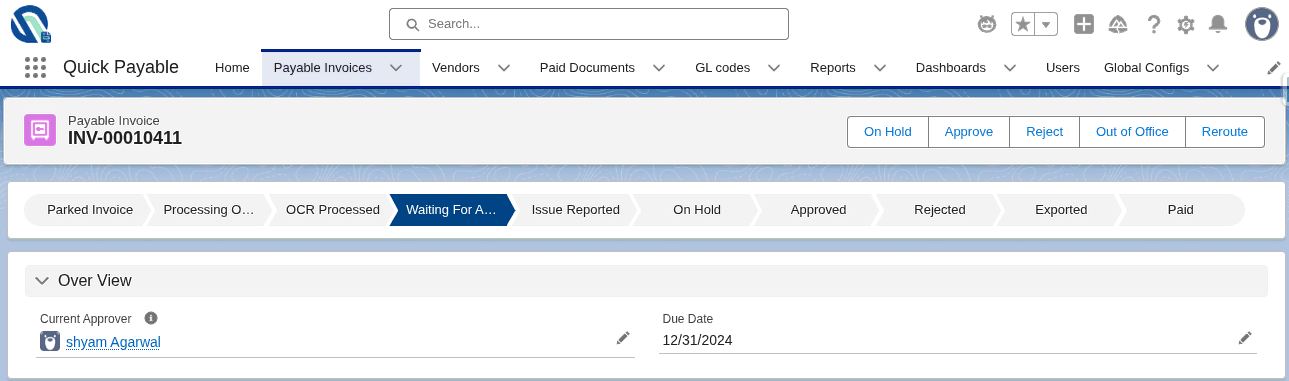
- The new invoice appears in your queue with a status showing Waiting For Approval.
Reviewing and Correcting Extracted Data
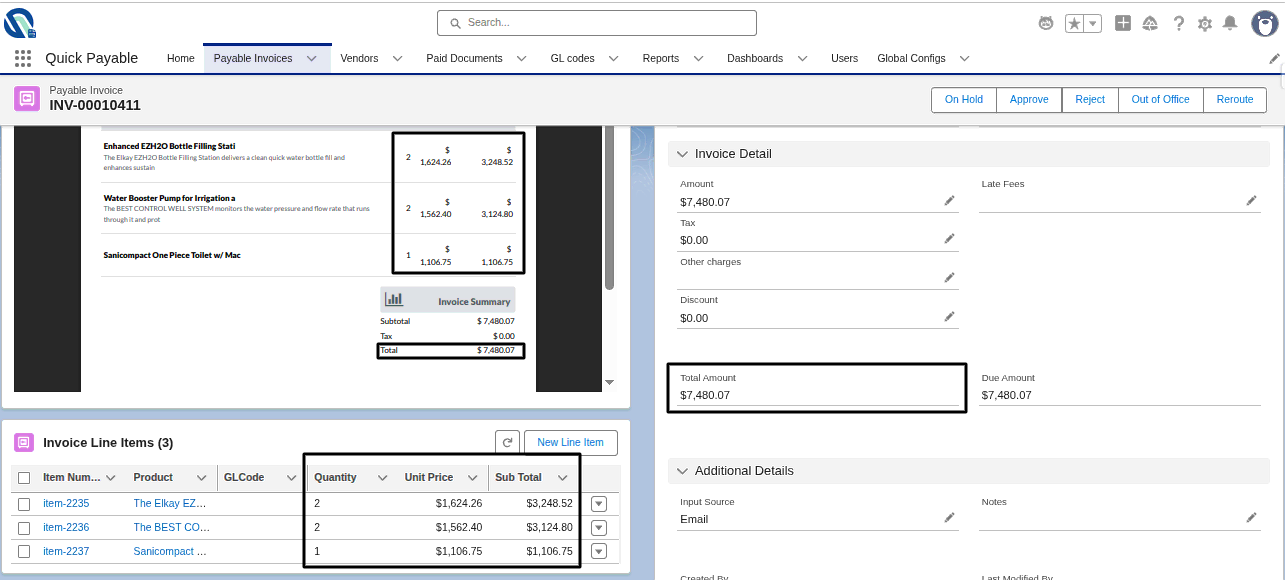
- Open the invoice record and compare the extracted fields against the original document, which is attached to the record.
- Correct any field that was misread, this is common with unusual invoice layouts or lower-quality scans, and gets easier as the system sees more of a given vendor's format.
- Confirm or update the GL code, cost center, and vendor assignment before submitting for approval.
Handling Flagged Exceptions
- If Quick Payable detects a duplicate invoice during processing, the invoice is automatically marked with a Rejected status. Review the rejected invoice and the existing invoice record to determine whether further action is required.
- If Quick Payable detects a mismatch between the OCR-extracted data and the uploaded invoice PDF, review the highlighted fields (such as invoice line items or total amount) and make any necessary corrections before continuing with the approval process.
Tracking Invoice Status
Every invoice shows one of the following statuses: Parked Invoice, Processing OCR, OCR Processed, Waiting For Approval, Issue Reported, On Hold, Approved, Rejected, Exported, Waiting For Payment, or Paid. Use the Payable Invoices list view to filter by status, vendor, or date range rather than checking each invoice individually.
For Approvers
Reviewing Pending Approvals
- Approvers receive a notification when an invoice is routed to them.
- Open the invoice to review the amount, vendor, line items, and any notes added by the QP user.
- Approve or reject the invoice directly from the record. If necessary, add notes to provide additional context or explain any required corrections.
Approving from Any Device
Approvals can be completed from a phone, tablet, or desktop wherever you're logged into Salesforce, which matters for approvers who are often out of the office or on a job site rather than at a desk.
Delegating Approvals
If you're going to be unavailable, set up out-of-office delegation so invoices routed to you don't stall waiting for your return. Ask your Quick Payable administrator to configure this if you don't see the option yourself; see Administration for setup details.
Viewing Approval History
Every approval or rejection is logged with a timestamp and the user who took the action, visible on the invoice record's audit trail. This is useful when a vendor asks about payment status or when finance needs to confirm an approval chain during an audit.
For Everyone: Dashboards and Search
- Use the AP Dashboard for a real-time view of invoice status, upcoming payments, and spend by vendor.
- Filter and search invoices by vendor, amount, date range, or status from the Invoices list view.
- Save a custom list view or report for anything you check regularly, such as "invoices pending my approval" or "invoices over 30 days old."
Managing Vendors
- Add a new vendor record with contact details, payment terms, and default GL coding before their first invoice arrives, if possible, to speed up processing.
- Update vendor payment terms or contact details directly on the vendor record; changes apply to future invoices.
- If your organization uses the vendor self-service portal, vendors can submit invoices and check payment status without emailing your team directly.
Common Tasks Quick Reference
| Task | Who does this | Where |
|---|---|---|
| Submit a new invoice | QP Staff / QP Admin | Email Service or Payable Invoices tab |
| Correct extracted invoice data | QP Staff / QP Admin | Invoice record |
| Approve or reject an invoice | QP Staff / QP Admin (based on Monetary Limit) | Invoice record, any device |
| Check invoice status | QP Staff / QP Admin | Payable Invoices list view or Dashboard |
| Add or update a vendor | QP Admin (or QP Staff if permitted) | Vendors tab |
| View dashboard reports | QP Staff / QP Admin | AP Dashboard |
| Configure users, managers, and monetary limits | QP Admin | Users tab |
Tips
- Correcting extracted data on early invoices from a new vendor is normal, accuracy improves as the format becomes familiar.
- Use list view filters instead of scrolling through every invoice, especially once volume grows.
- If an approval seems stuck, check whether the approver has out-of-office delegation set up before assuming something is broken.
Something not working as expected?